
A wedding portrait planning guide
AI Wedding Dress Generator for Playful Social-Post Concepts
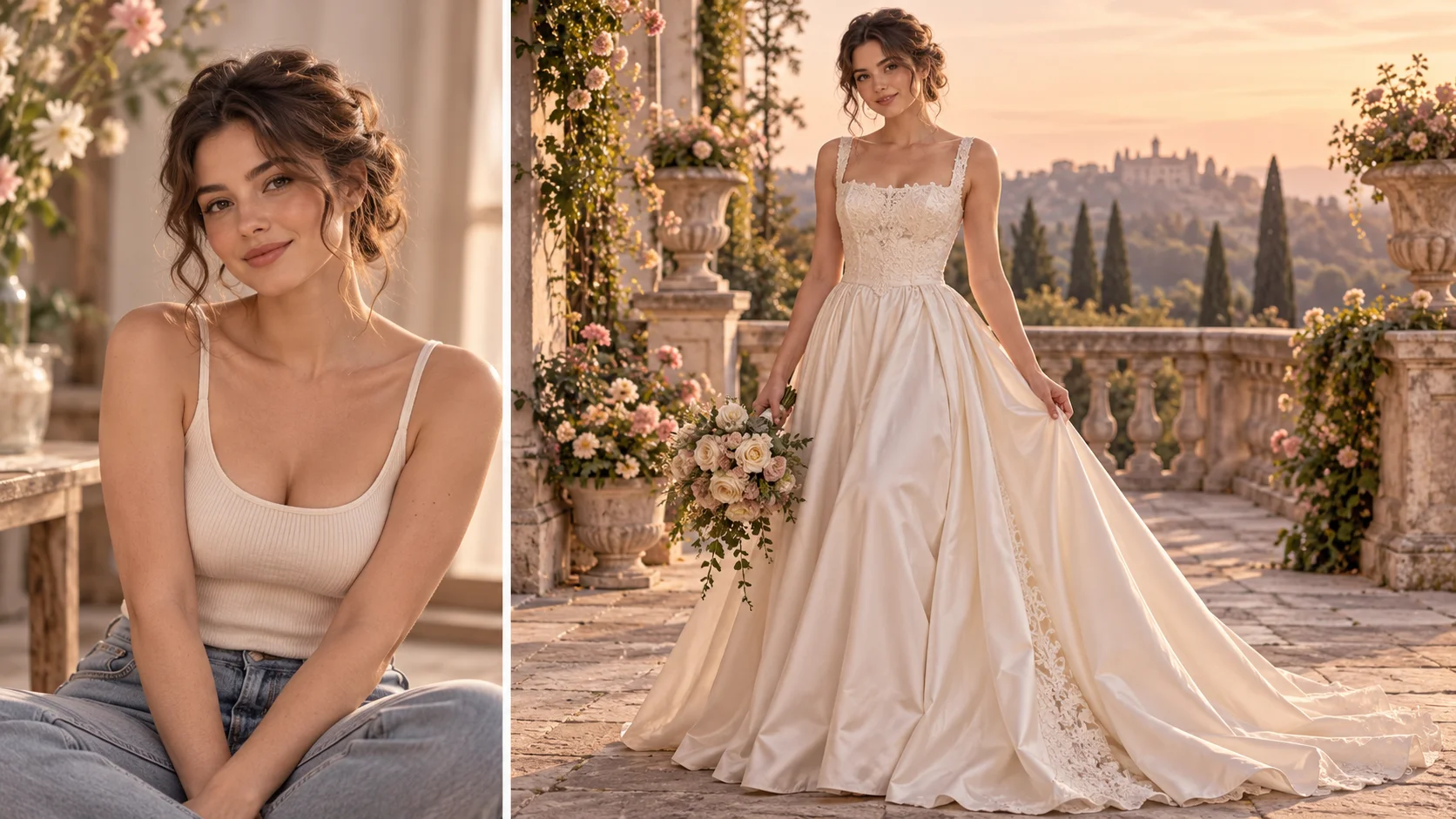
Imagine a wedding gown portrait
History
Plan the portrait and the gown
What does the wedding dress generator create?
It creates a new image of the wedding dress direction you describe. A portrait can supply the adult subject, while your text specifies the gown silhouette, neckline, fabric and photographic setting.
How do I make it personal?
Use Image to Image and upload one clear adult photo. Describe one gown and ask to preserve the person's face. Review the available image options and current credit quote, then generate when the brief is ready.
Can I try a gown with free credits?
Check the credits and eligibility available to your account. If they cover the selected attempt, you can use them. Otherwise, review current Pricing before choosing whether to buy credits.
Should I upload a full-body photograph?
A full or three-quarter adult photo is useful when the skirt and hem matter. Keep arms clear of the body where possible. A close headshot gives less information about pose and space for a complete gown.
How much will the portrait cost?
Use the live credit requirement displayed after selecting the available settings. Different image options can change the quote. Preparing the photo and editing the dress description do not start a job.
How long does it take?
Image settings and queue conditions affect processing. After submitting, check the job in History and open the completed portrait there. There is no single completion time that applies to every request.
Put a wedding dress idea into a portrait before building your mood board. The AI Wedding Dress Generator on dotsai.pro lets you describe a neckline, fabric and skirt shape, using one adult photo as the personal reference. A clear outfit brief helps you compare the gown rather than an entirely different scene. Start with one silhouette and a photo that leaves room for it, then use the guide to refine details and review the finished image.
Create a gown portraitLeave space for the full outfit
Make the photograph useful for the dress you want
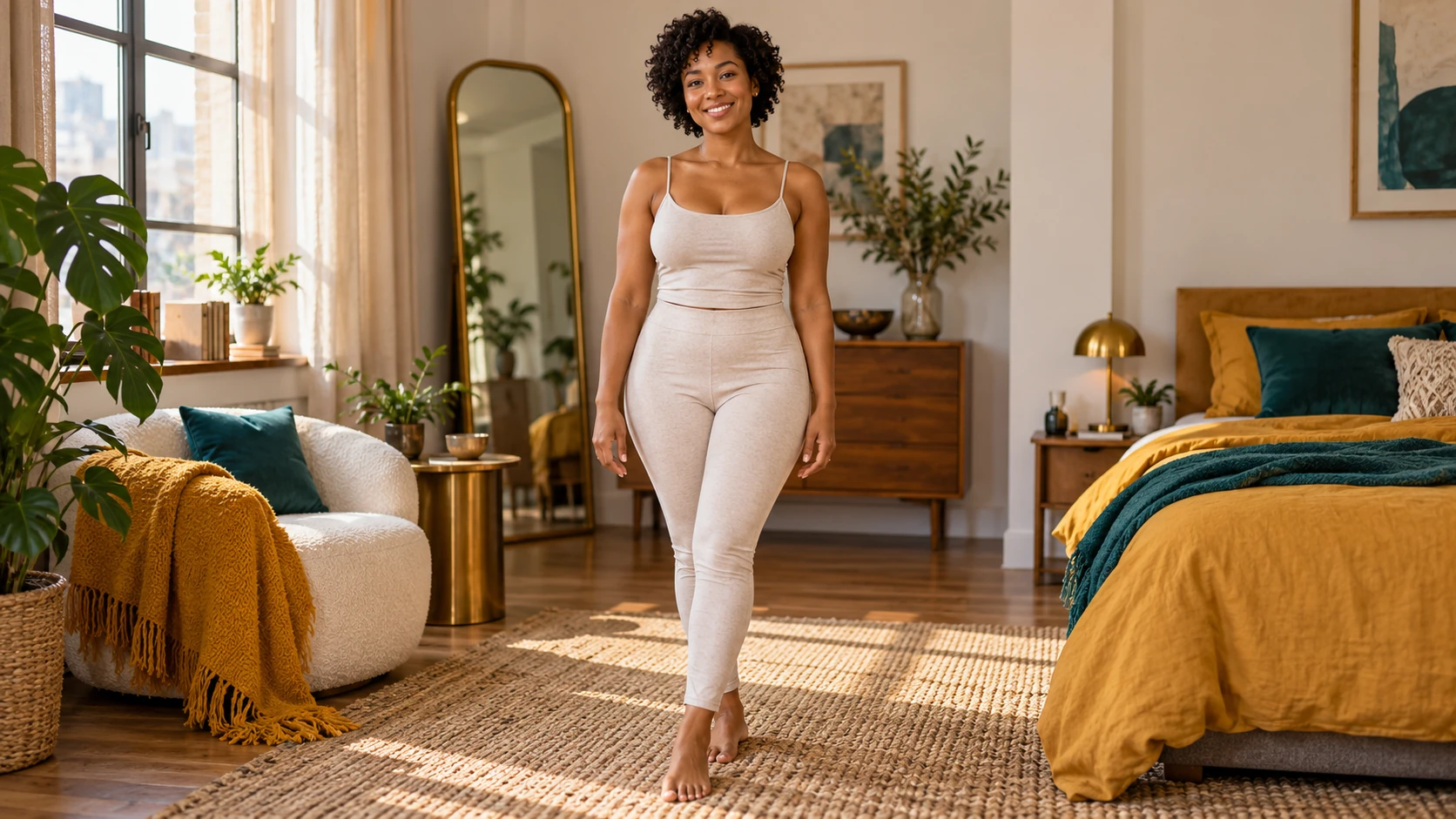
The photo and the gown brief should support each other. A full skirt needs space around the legs; a detailed neckline needs a clear upper body. Strong crossed arms, large bags and bulky coats can hide the shape you are trying to explore. Choose a simpler pose when you have an alternative. The clothes in the source do not need to match the gown, but the body outline should be easy to understand. Keep the face large enough to remain recognizable and avoid a very distant figure. A balanced portrait gives you a more useful image for comparing both the person and the dress.
How to create a wedding dress portrait
Choose the pose and leave room for the skirt
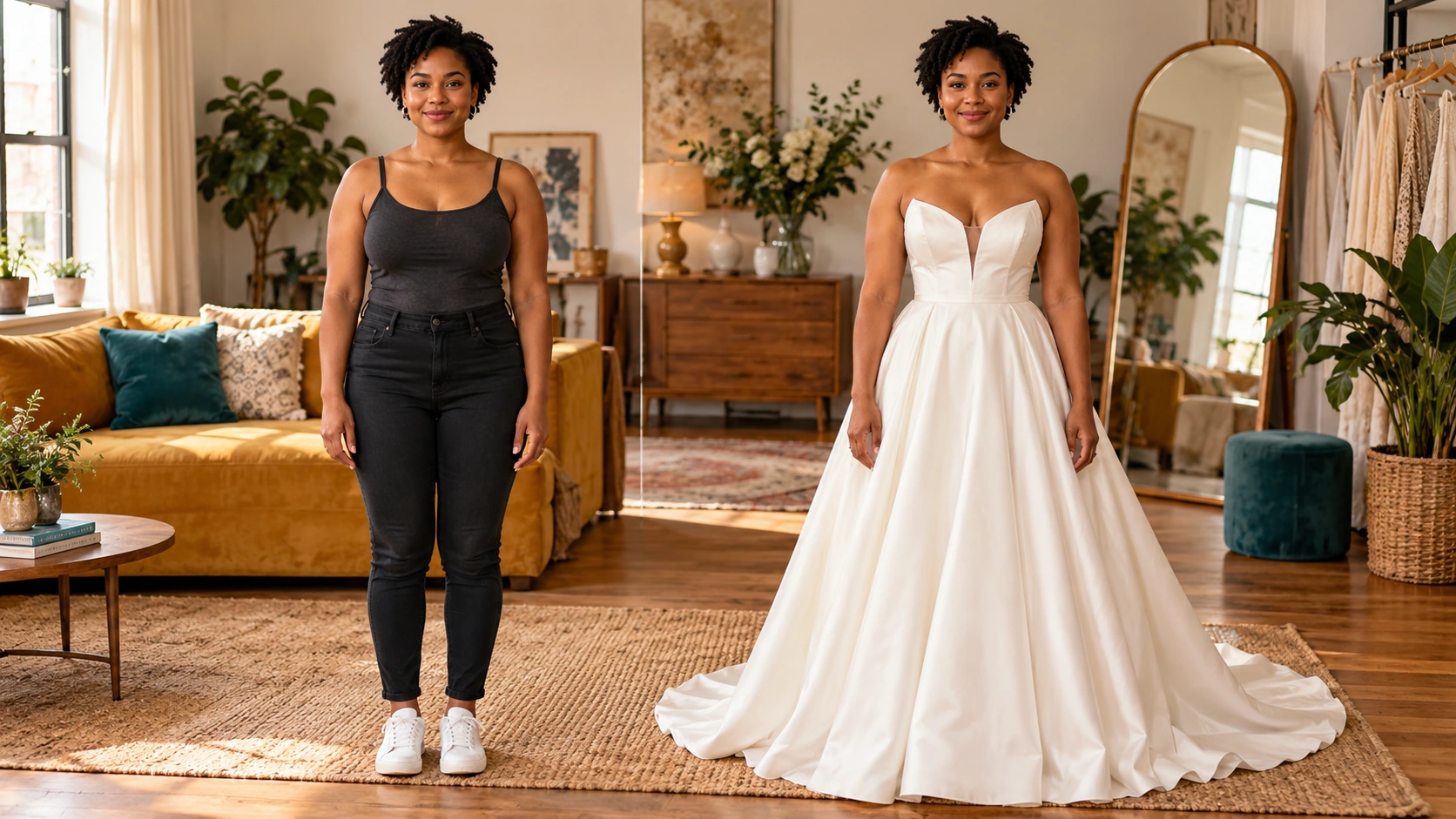
Use a well-lit adult photograph with a clear face and an uncluttered body outline. For a full gown, include enough space below the waist and around the feet. A relaxed standing pose helps you see the skirt shape. Keep the original file for a later face and pose comparison.
Describe the dress from shape to detail
Start with an A-line, fitted or fuller skirt direction. Add the neckline and sleeves, then name one fabric such as smooth satin or delicate lace. Finish with a few meaningful details. A clear hierarchy makes it easier to judge whether the main dress idea survived.
Keep the setting in support of the gown
Choose soft daylight, a simple room or a calm garden setting. Ask to preserve the adult's recognizable face and a natural pose. Avoid a long list of props that could obscure the bodice or hem. Check the image choices and quote before submitting the request.
Review silhouette, face and fabric
Open the completed image in History. First check the overall shape and where the skirt meets the ground. Then inspect the neckline, sleeves, hands and face. If the main silhouette works, keep it and change one detail, such as the neckline or amount of lace, for the next attempt.
Give silhouette, fabric and setting their own roles
Silhouette controls the broad outline, fabric suggests the surface and movement, and the setting explains the light around the subject. Try an A-line satin gown with a square neckline in soft window light as one coherent idea. On a later attempt, keep the silhouette and compare a lace treatment. If you change the location, pose, skirt shape and fabric together, the results become separate concepts rather than a useful comparison. Leave elaborate accessories until you have a gown direction you like. This makes the first image easier to evaluate and the next instruction more purposeful.
Bring the dress into a complete portrait
A simple satin silhouette
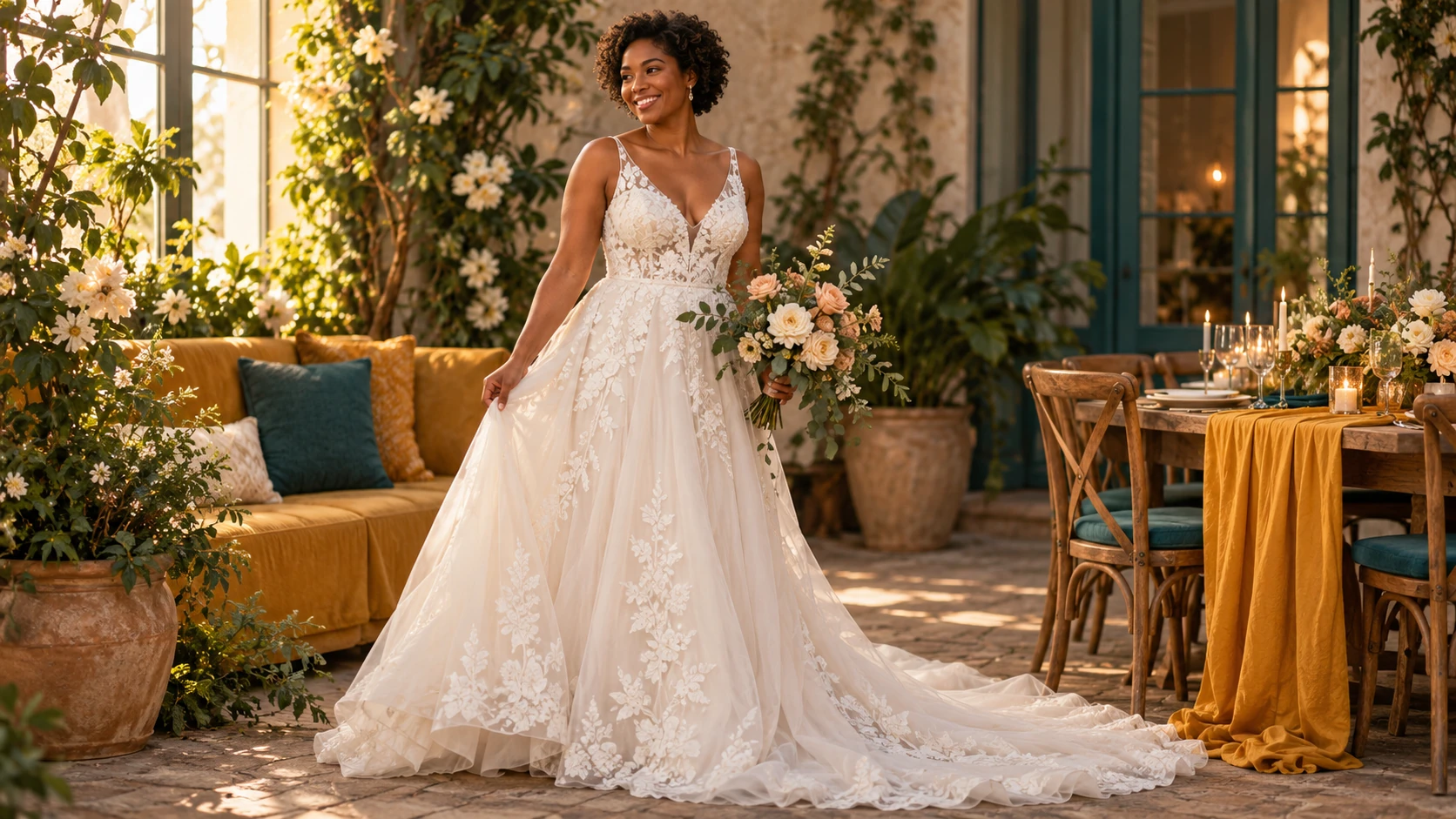
Begin with an A-line skirt, a clear neckline and restrained accessories. Soft indoor daylight keeps the fabric surface easy to see. Compare the waist and skirt shape before adding more decorative detail.
A lace garden portrait
Describe a light lace treatment and a calm outdoor background. Keep flowers from covering the bodice if that is the feature you want to study. Review the lace pattern and sleeve edges as well as the face.
A personal celebration card
Plan a relaxed portrait with space for a short message beside the subject. Choose the gown and pose first, then add your text after selecting the image. Leave enough room around the skirt for the final card crop.
Build a mood board around the details that matter
Save a portrait because it communicates a useful dress direction, then note the specific elements you want to discuss: a clean waistline, a softer sleeve or a simpler skirt. The picture is a styling concept, not a garment measurement or a retail order. Real fabric, construction and fit need their own assessment. For a personal card or announcement, choose the final crop after reviewing the face and gown details. Keep the hem visible if the skirt is central to the idea, and add any message in your design workflow after selecting the image.
The gown is cropped before the hem
Use a wider source or ask for a full-length composition with space below the feet. Choose a simpler background so the whole skirt can remain visible. Check your intended card or post ratio before submitting.
The dress has too many competing details
Reduce the brief to one silhouette, one fabric and one neckline. Remove extra trains, bows and layered accessories from the first attempt. Add a detail later only when it supports the dress direction you have chosen.
The person looks different
Use a sharper face reference and ask to keep the original expression and facial features. Avoid simultaneously requesting a new hairstyle and dramatic makeup. Compare the face at a useful size before choosing the portrait.
AI Wedding Dress Generator FAQ
Do I need to wear a dress in the reference?
No. The text describes the gown to create. A clear adult pose and visible body outline are more useful than matching the original outfit. Avoid clothing or objects that hide most of the upper body.
Can I create a gown without using my photo?
Text to Image creates a fictional adult wedding portrait from your description and does not use uploaded references. Choose Image to Image when the concept needs to be connected to a particular person's photo.
Can the image determine my dress size?
No. This workflow creates a visual dress concept. It does not measure the body or supply garment sizing. Use the image to explain a style direction, then assess real fit and construction separately.
Can I compare two necklines?
Yes. Keep the same source, silhouette and lighting in both requests, then change the neckline. Each submitted portrait has its own displayed quote. Compare the finished images in History at the same size.
Where do I download the portrait?
Open the completed task in History and inspect the face, hands and dress edges before downloading. If you want another version, revise the specific detail and read the current quote before submitting again.
Build the next part of your image
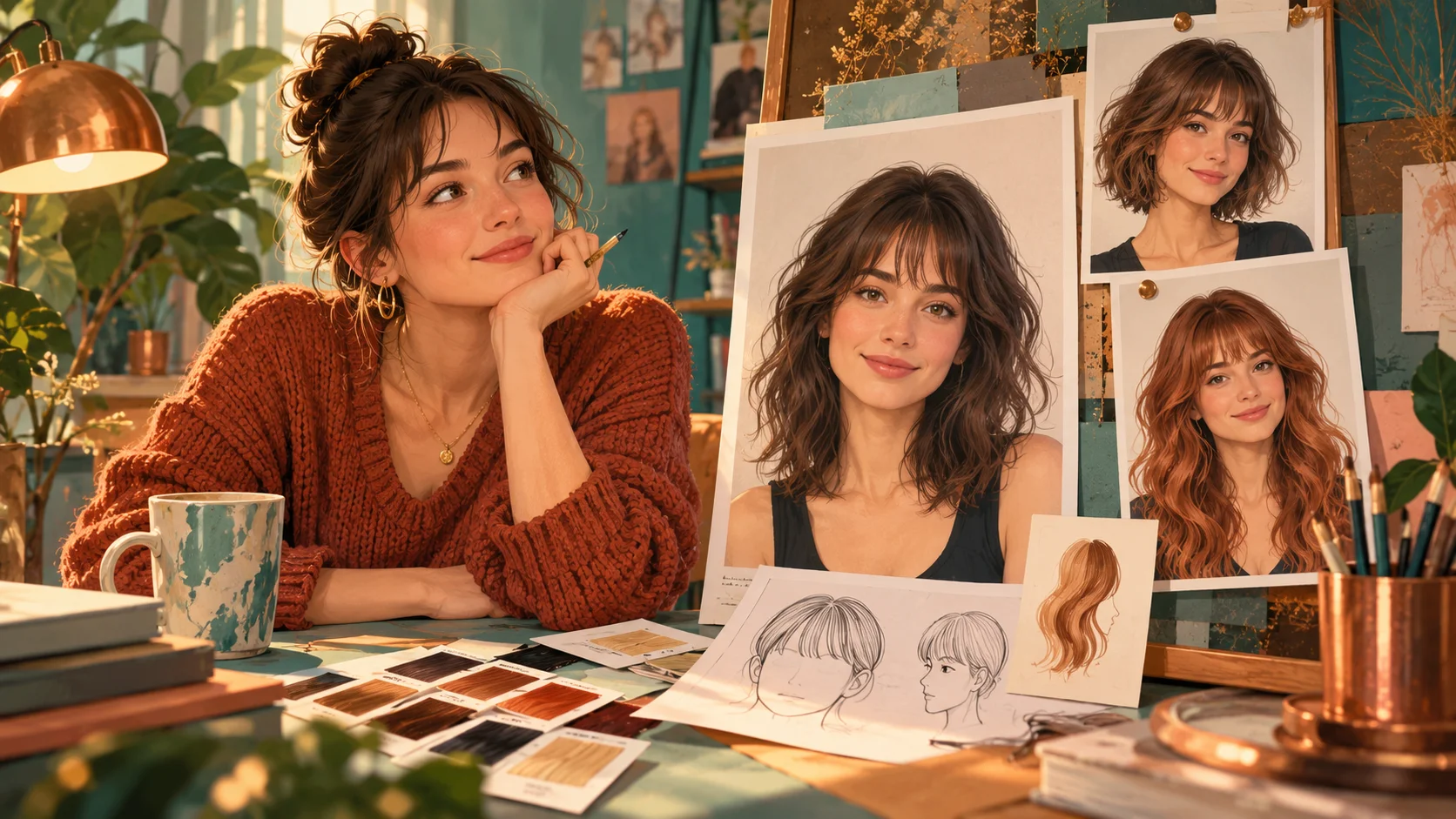
Plan the hairstyle separately
Explore hair framing before combining it with an occasion portrait.
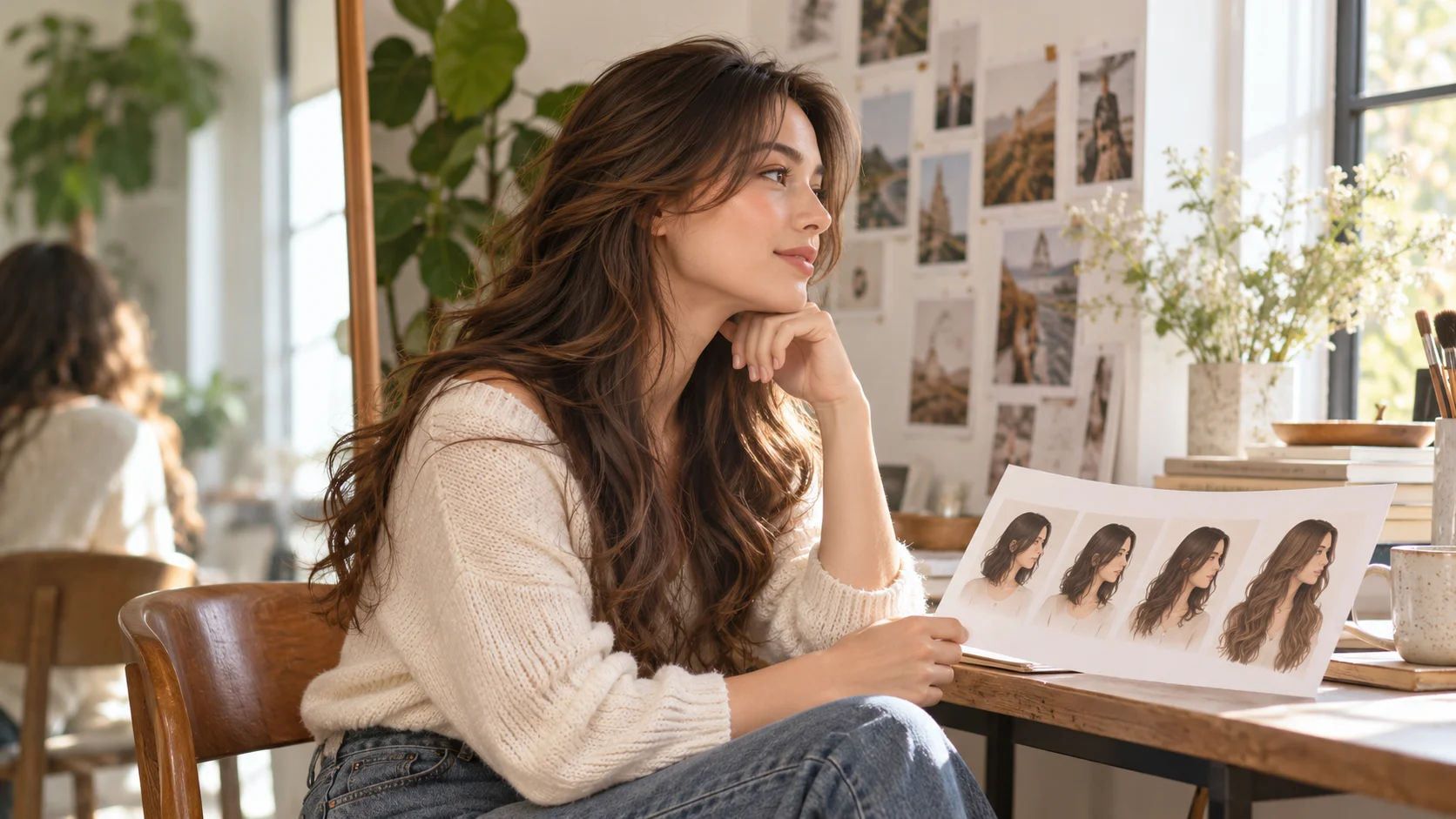
Compare a longer hair direction
Study length around the shoulders without changing the gown at the same time.
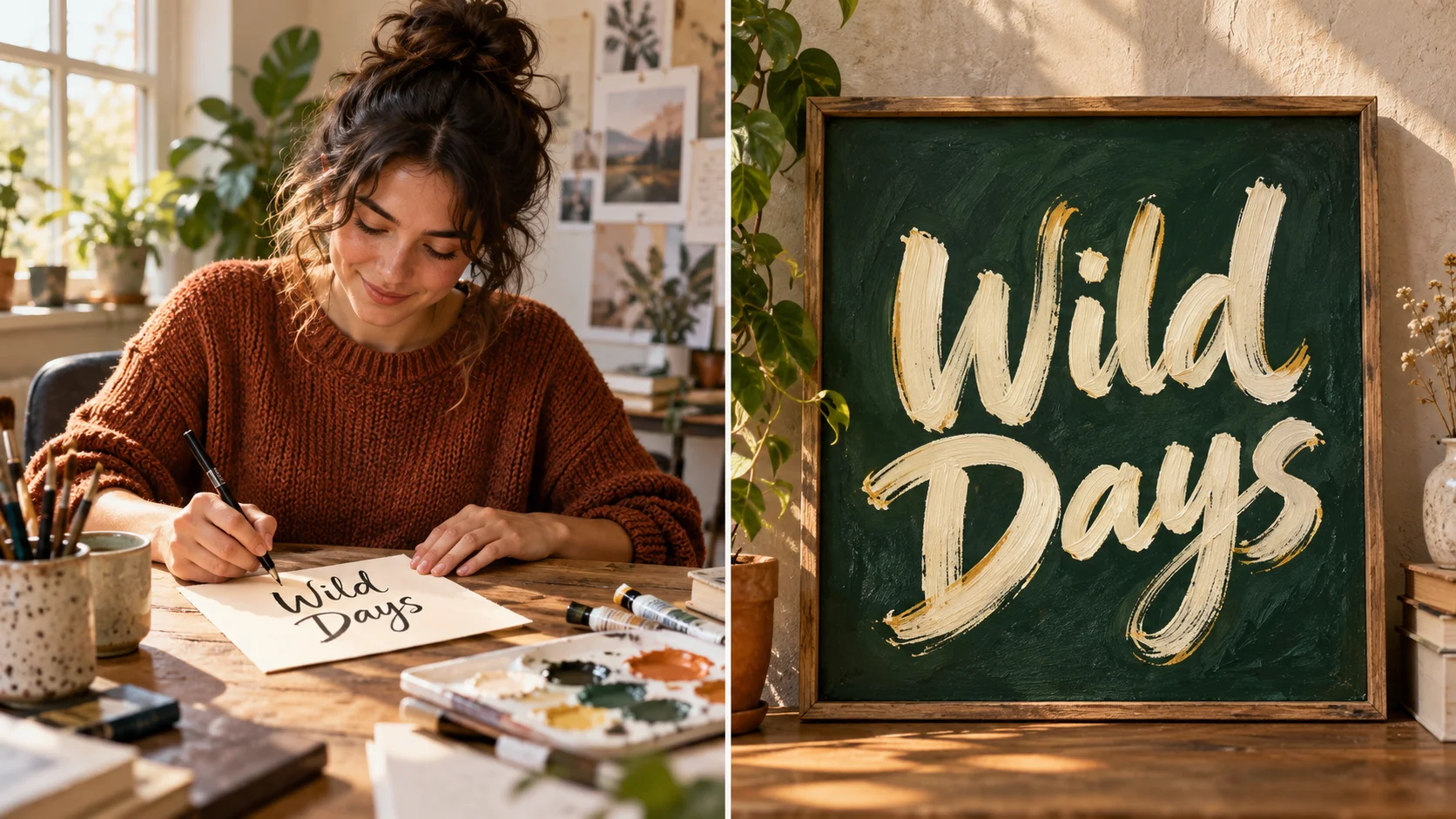
Develop lettering for the announcement
Create a separate headline image after choosing your favorite portrait.
Choose one silhouette to explore
Prepare the pose, describe the dress from shape to detail and check the current quote. Compare the completed portrait in History before refining another element.
Create a gown portraitdotsai.pro · Updated
What's new on this page
- — Added editable example prompts and separate drafts for text and reference modes, with an action to restore the example.
- — Page content published. Updated page copy and content. Updated page images or videos. Updated page generator or navigation settings.