
A guide to portraits built from emoji tiles
Photo From Emoji Generator: A Careful Preparation and Comparison Guide
Build an emoji mosaic portrait
History
Understand the mosaic workflow
What does Photo From Emoji make here?
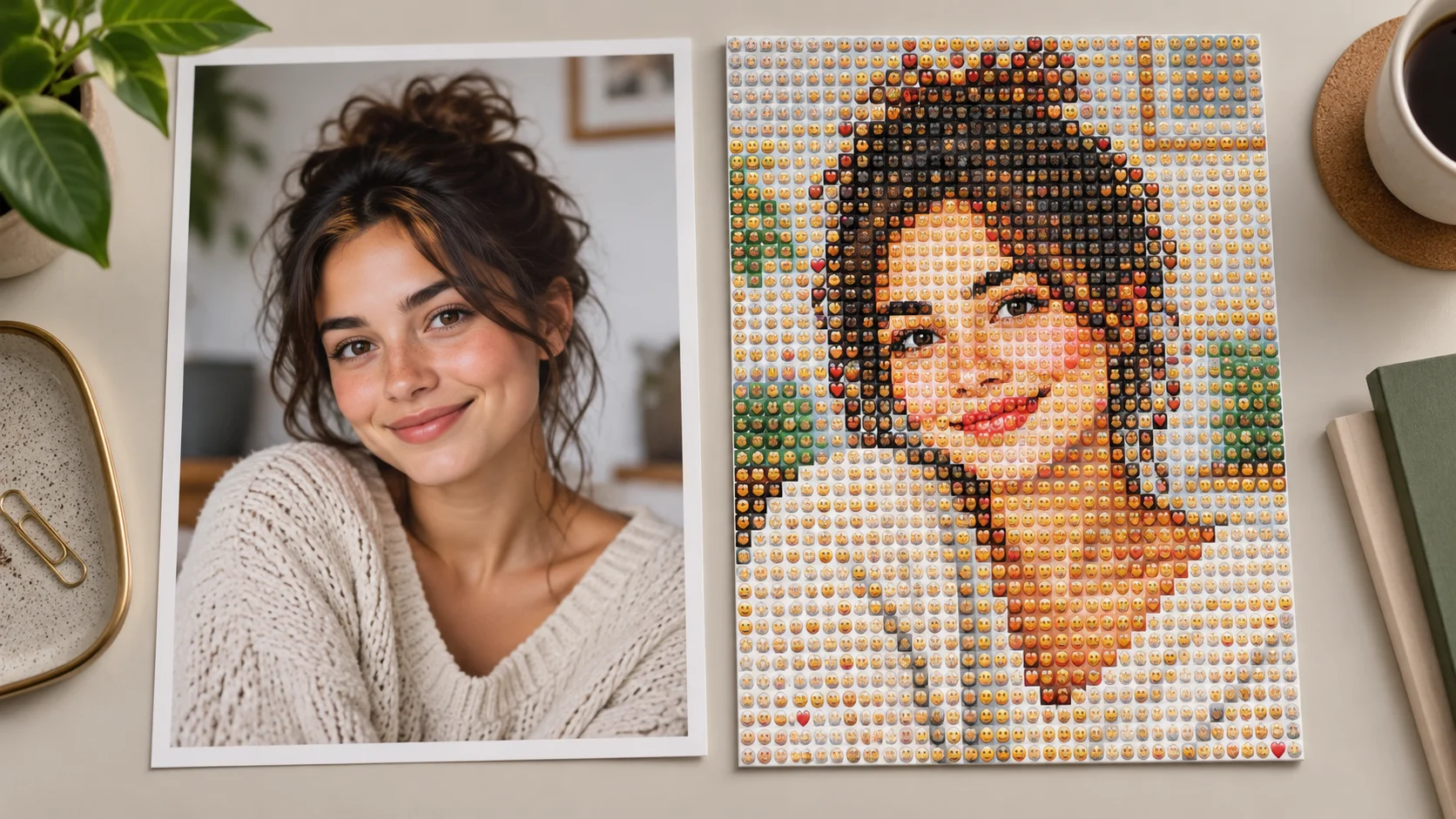
It creates an image that reinterprets a photo as an emoji mosaic. Many small emoji tiles form the subject's broad colors, face outline and composition instead of appearing only as decorations around a normal photo.
How do I use my photograph?
Choose Image to Image, upload one clear photo and describe the mosaic effect. Specify a readable subject, controlled tile detail and a simple background. Review the quote and generate when the brief is ready.
Can I try the mosaic with free credits?
Check your account's available eligible credits and the displayed generation requirement. If the balance covers the attempt, you can use it. Current Pricing explains purchase options when more credits are needed.
Which source image is easiest to recognize?
Use one adult face or another clear single subject with a distinct outline. Strong color areas and a calm background work better for a readable mosaic than a distant group full of tiny details.
How much does the mosaic cost?
The live credit quote reflects the image settings selected in the workspace. Check it after choosing the available options. Uploading the source and editing the mosaic description do not submit a generation.
When will the emoji image be ready?
Image settings and queue conditions affect processing. Follow the submitted job in History, then open the completed mosaic to inspect and download it. Wait for the task status before sending the same request again.
Build a portrait that reveals two things at once: a recognizable face from a distance and a field of tiny emoji shapes up close. The Photo From Emoji Generator on dotsai.pro uses your photo and a written mosaic direction to explore that effect. Choose a clear subject, simplify the background and let the small tiles form the image itself. This guide explains how to prepare the source, balance detail and compare the mosaic at the size you intend to share.
Build an emoji mosaicStart with a face that reads at a glance

Choose broad shapes that survive the tile treatment
An emoji mosaic depends on the relationship between small colored marks and the larger image they form. A clear face, dark hair against a lighter wall or a bright shirt against a quiet room gives those marks an understandable structure. A distant group in a detailed street scene asks many small tiles to preserve too many things. Start with one important subject and crop away distractions. Look at the source as a thumbnail before uploading it. If you can still recognize the face and pose at that size, you have a useful starting point for a mosaic that will also be viewed small.
How to turn a photo into an emoji mosaic
Crop around the image you want to preserve
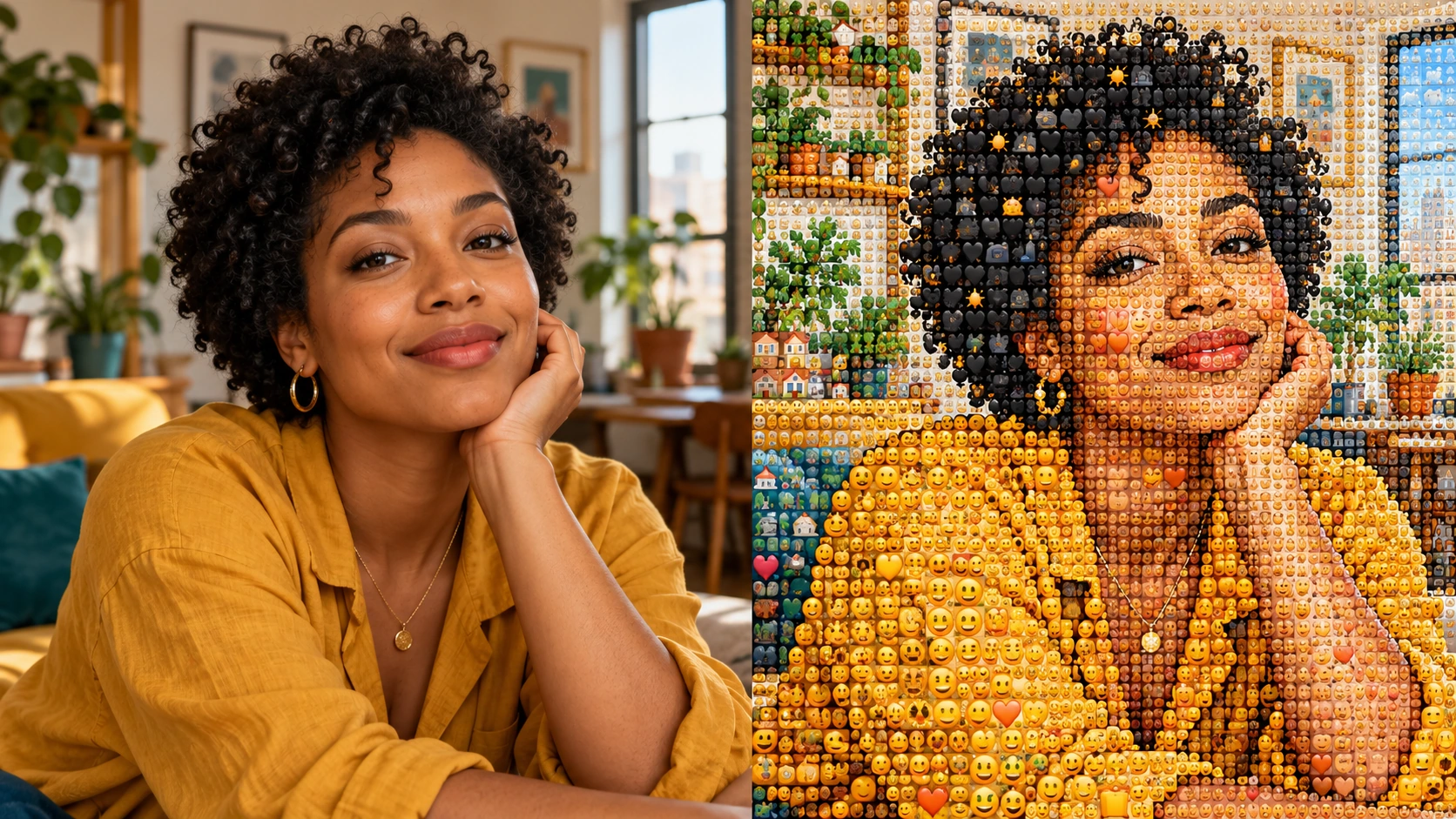
Choose a subject with a clear silhouette and enough contrast against the background. For a portrait, keep the face reasonably large and leave room around the hair. Remove surrounding app controls or unnecessary borders from a screenshot. Keep the original photo for comparison.
Describe a mosaic rather than a sticker frame
Ask for many small emoji tiles to form the image's colors and shapes. State that the face and pose should remain readable. A few oversized emoji around the border create a different effect, so explain that the tiles belong inside the subject as well as the background.
Balance tile detail and the overall portrait
Start with moderate tile density and a simple background. Keep the eyes, mouth and hair outline visible through the color structure. Select the available image settings and review the current credit quote. Generate when the source and direction express one clear mosaic idea.
Inspect it near and far
Open the completed image in History. First view it small enough to judge whether the subject is recognizable, then inspect the tile treatment more closely. If the face disappears, simplify the background or request stronger color separation. Keep the same source for the next comparison.
Make the tiles do the work of the image
The key instruction is that the emoji shapes rebuild the subject. Ask for tile color and density to follow the face, hair and clothing rather than covering an unchanged photograph with random symbols. Keep the description focused on that relationship. You can name a cheerful or restrained mood, but a long list of specific emoji can compete with the larger portrait. First choose a readable overall structure, then explore a more detailed or more playful tile treatment. Compare each result at a similar size so the amount of detail does not hide the actual difference.
Check both the large portrait and the small tiles
A playful profile variation
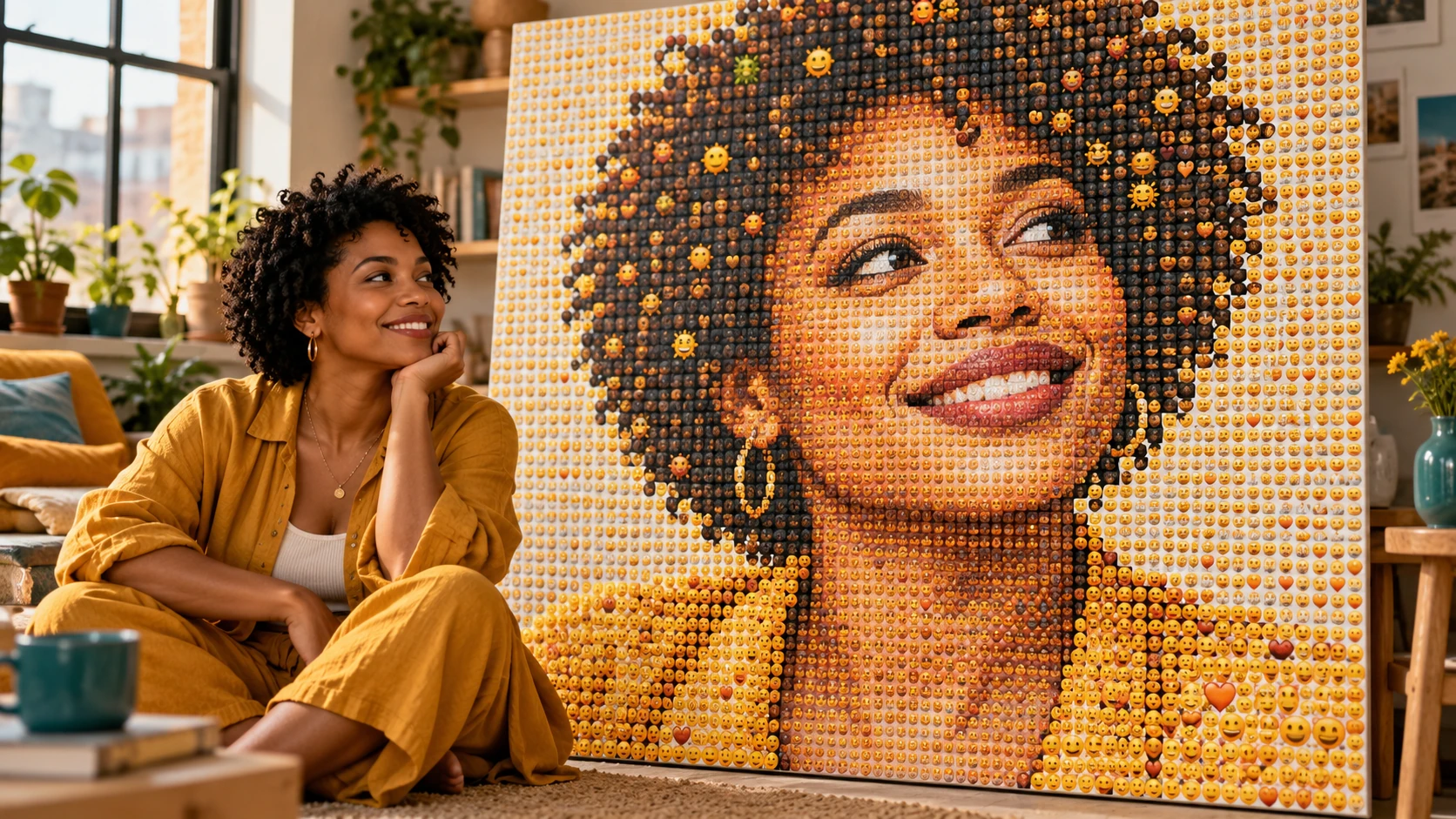
Use a close portrait with a calm background and distinct hair outline. Keep tile detail moderate so the face survives a small square crop. Compare the mosaic with your original at the actual profile display size.
A colorful personal card
Choose a portrait with one strong clothing color and leave space in the card layout for a separate message. Let the mosaic be the main visual instead of asking it to carry small text as well. Inspect the face before adding the final greeting.
A near-and-far social post
Build a composition that reads as a portrait at first glance and reveals small emoji on closer inspection. Keep the source simple enough for both views to work. A short caption can invite viewers to notice the tile construction.
Design for the final viewing size
A mosaic that looks intricate on a large screen may become visual noise in a small avatar. Decide whether your image is intended for a square profile, a feed post or a larger graphic before choosing the final crop. Keep enough separation around the eyes and mouth for the face to remain readable. For a post, leave caption text outside the mosaic so it does not compete with the tile pattern. Review the final exported image at the size your audience will see. Choose the version that communicates both the subject and the playful construction without requiring a long explanation.
It looks like stickers around a photo
Repeat that the subject itself should be reconstructed from many small emoji tiles. Remove directions about a decorative border. Keep the broad face colors and silhouette as the structure of the mosaic.
The face is difficult to recognize
Use a tighter, clearer crop and request stronger color separation around the eyes, mouth and hair. Simplify the background. Reduce competing decorative elements before asking for more tiny tile detail.
The pattern becomes noisy on mobile
Compare the image at the size of the intended post or avatar. Ask for clearer large shapes and controlled tile density. A more readable portrait is often more useful than maximum detail in every part of the frame.
Photo From Emoji Generator FAQ
Does this page convert emoji text into a normal photo?
This page's preset explores a photo-to-emoji mosaic: a source image is rebuilt visually using many small emoji shapes. Use Text to Image for a new described scene, but keep that separate from the reference-photo mosaic workflow.
Can I use an image without a person?
A clearly outlined single subject can be used as a reference. Strong colors and simple shapes are helpful. Avoid an image whose main subject is too small to distinguish once the tile treatment is applied.
Can I choose every individual emoji tile?
The description guides the visual treatment rather than placing each tile manually. Focus on the overall mood, density and color structure. Inspect the completed image to see whether that treatment supports the subject.
Can I begin with only a description?
Text to Image can create a new mosaic-style image from text and does not use uploaded references. Choose Image to Image when you want the mosaic to follow the face, pose and framing of your own photo.
Can I return to an earlier version?
Open History to review completed attempts and select the image you prefer. A new submitted variation has its own quote. Keep your source and notes so you can compare the pattern changes consistently.
Build the next part of your image

Create a separate headline for the post
Keep lettering clear by developing it outside the detailed mosaic.

Compare bold graphic color blocks
Try an illustrated urban treatment as a different portrait direction.

Prepare a personal group composition
Plan the people and scene in a separate photo-editing workflow.
Choose a clear subject and let the tiles build it
Prepare the source, describe a readable mosaic and check the quote. Compare the completed image near and far in History before selecting the version for your post.
Build an emoji mosaicdotsai.pro · Updated
What's new on this page
- — Added editable example prompts and separate drafts for text and reference modes, with an action to restore the example.
- — Page content published. Updated page copy and content. Updated page images or videos. Updated page generator or navigation settings.